
If you cannot find a routine that fits your exact training goals in Community Workouts, you can build your own from scratch using Impakt's full library of exercises. Custom routines can be kept Private for your personal training or published as Public workouts so other athletes can find them and compete on your workout's leaderboard.
Step 1: Open the Workout Creator
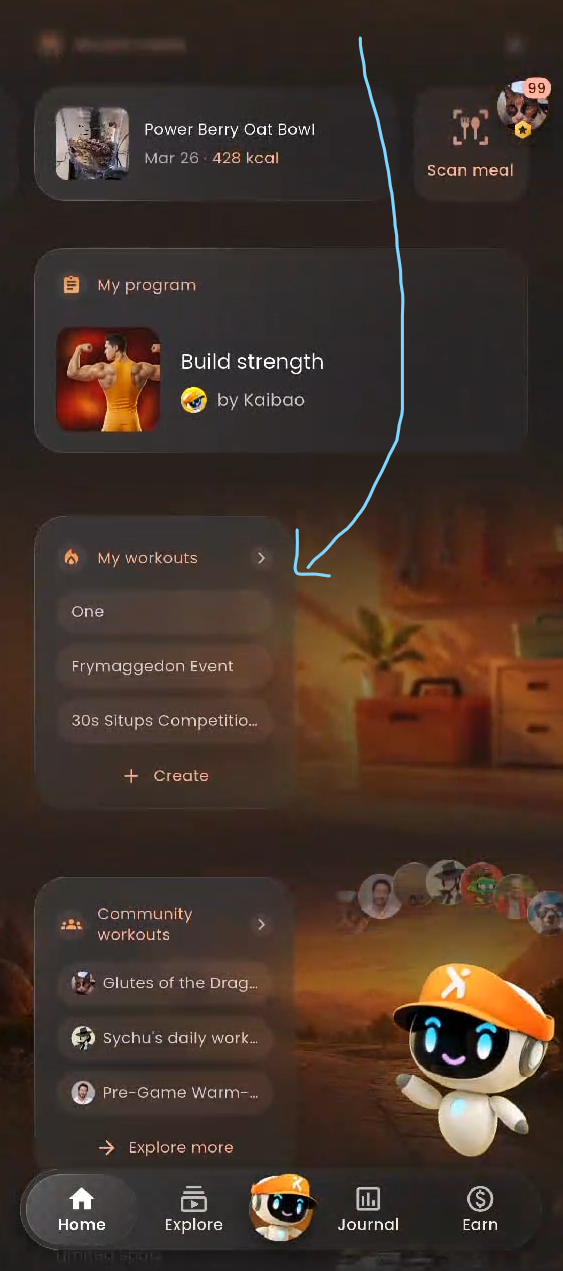
Open the Impakt app and navigate to the Home tab on the bottom navigation bar.
Scroll down to the My workouts card.
Tap + Create directly on the card—or tap My workouts > to view your saved routines and tap the orange + button in the bottom-right corner.
Step 2: Name Your Workout & Set Preferences
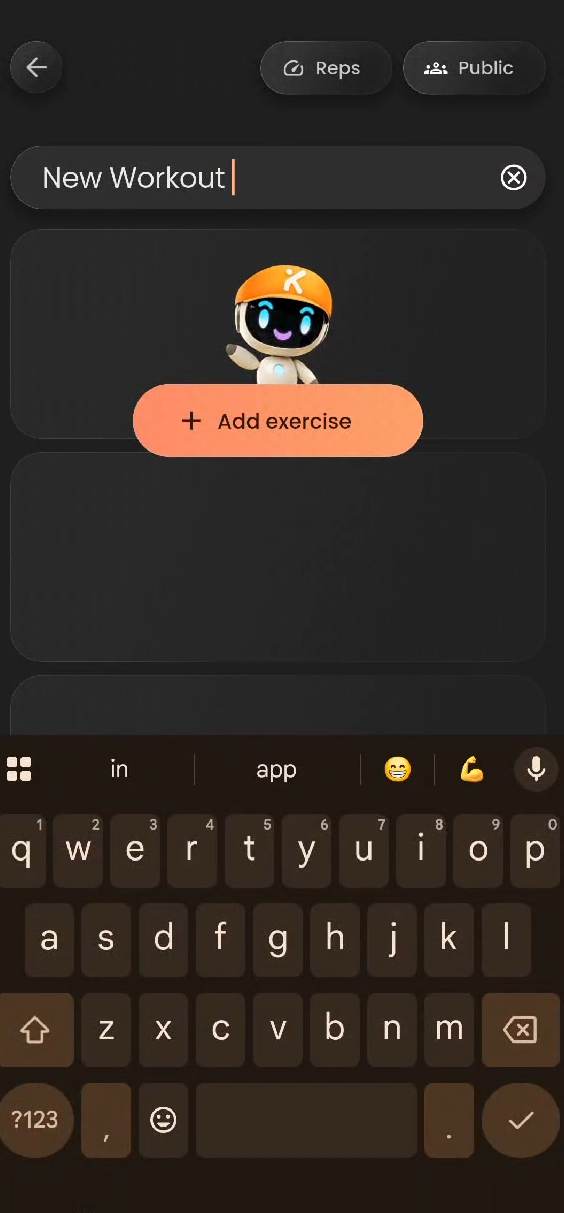
At the top of the workout builder screen, configure your core workout settings:
Name Your Routine: Tap the New Workout text field (or the Pencil icon), enter a custom title for your routine, and tap the checkmark on your keyboard.
Choose Workout Format (Reps vs. Time): Tap the Reps / Time dropdown in the top-right area:
Reps: Sets are completed by hitting a target number of repetitions (isometric holds like Active Hang or Planks will still use timers).
Time: All exercises in the routine are converted to timed intervals.
Set Visibility (Public vs. Private): Tap the Public / Private dropdown in the top-right corner:
Public: Publishes your routine to the Community workouts directory so other athletes can try it and compete on its Leaderboard.
Private: Keeps the workout visible only to you under My workouts.
Step 3: Browse and Add Exercises
You can find a list of exercises (over 100+ exercises you can add to your workout) that you can add to your custom workout in this article here: Available Exercises as of 11/4/26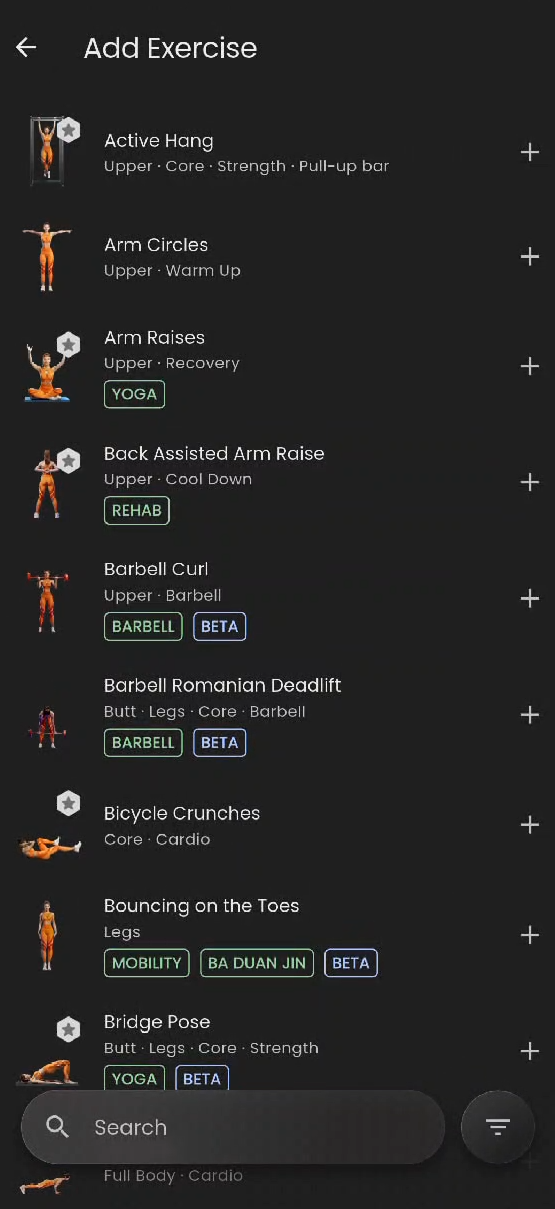
Tap + Add exercise (or + Exercise after adding your first movement) to open the Add Exercise catalog.
Find the movements you want to include using any of the following tools:
Scroll the Catalog: Browse the alphabetical list of exercises. Each entry displays targeted muscle groups, purpose, required equipment, and special tags.
Search by Name: Tap the Search bar at the bottom to type a specific movement (e.g.,
push up).Filter by Category: Tap the Filter icon (bottom-right next to the search bar) to narrow down the list by:
Body area: Core, Upper, Legs, Butt, or Full Body
Purpose: Warm Up, Cardio, Strength, Recovery, or Cool Down
Equipment: No equipment, Barbell, Dumbbell, Kettlebell, or Pull-up bar
Attributes: Ba Duan Jin, Mobility, Rehab, or Yoga
Tap the + icon next to an exercise to add it to your workout.
Understanding Exercise Tags (
BETA&Hero):
Standard Exercises (No
BETATag): Exercises without aBETAlabel are part of the core rotation and can appear automatically in your curated Daily Workouts.
BETAExercises: Movements labeled with aBETAtag (such as Barbell Curl, Kettlebell Swing, Yoga poses, or Ba Duan Jin mobility movements) do not appear in Daily Workouts, but are fully available to add to your custom routines!Hero Exercises: Movements marked with a ★ icon on their thumbnail count as Hero exercises (requires Hero Mode).
Step 4: Customize Reps, Timers, and Rest Periods
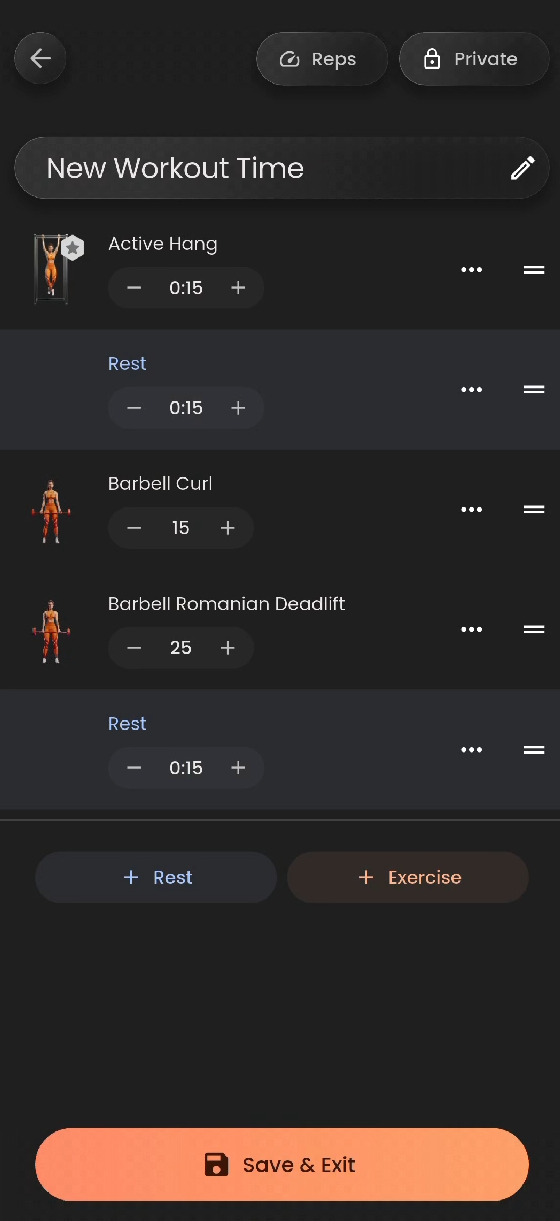
Once your exercises are added to the builder list, fine-tune the structure of your session:
Adjust Reps or Duration: Use the
-and+buttons beneath each exercise to change the target rep count or hold time. You can also tap directly on the number to type an exact value using your keypad.Add Rest Intervals: Tap + Rest at the bottom of the list to insert a recovery break between sets, then adjust the rest duration using the
-and+buttons.Reorder or Manage Sets: Use the drag handle (
=) on the right side of any row to rearrange the order of your exercises and rest periods, or tap the three dots (...) menu for additional set options.
Step 5: Save and Start Your Workout
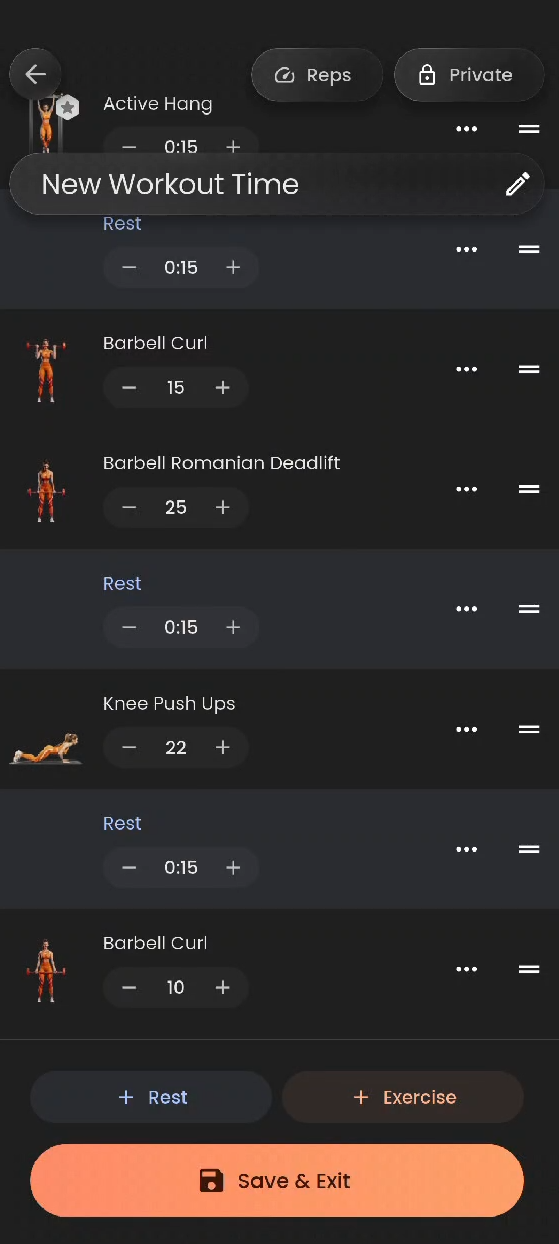
When your routine is complete, tap Save & Exit at the bottom of the screen.
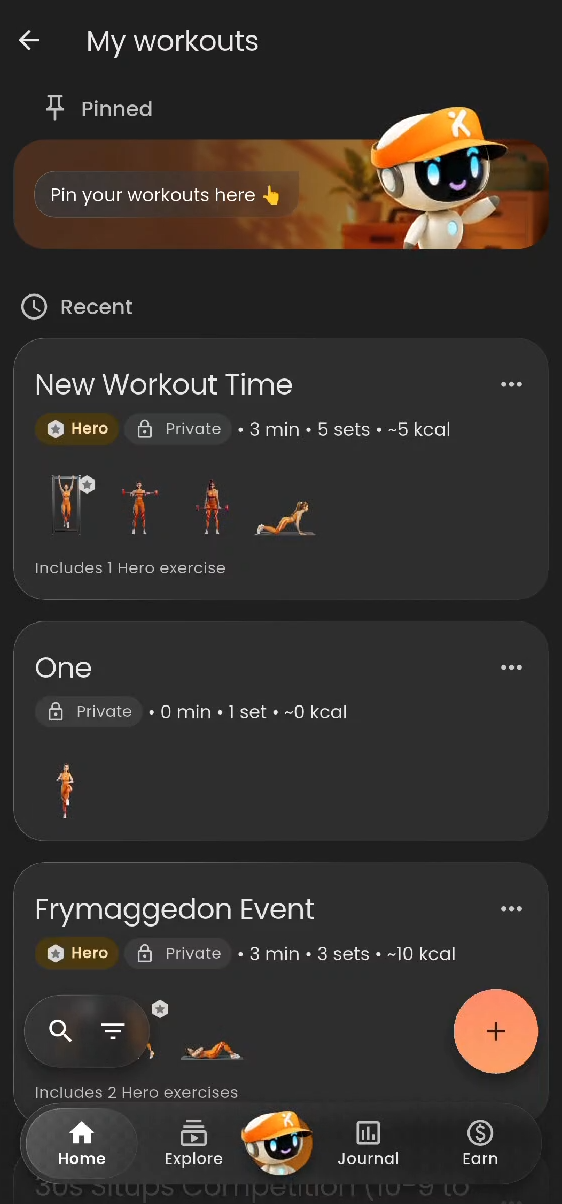
Your new routine will immediately appear under the Recent section of My workouts (and on your Home screen card).
Tip: If you have a large library of custom routines in My workouts, tap the magnifying glass icon in the bottom-left corner to search your list by title, or tap the three dots (
...) on a workout card to pin it to the top.
Tap your newly created workout to view its Sets and Leaderboard, then tap Work out at the bottom of the screen to try it out!
Was this article helpful?
That’s Great!
Thank you for your feedback
Sorry! We couldn't be helpful
Thank you for your feedback
Feedback sent
We appreciate your effort and will try to fix the article