
If your Daily Workout isn't enough—or if you are looking to target a specific muscle group, try a quick challenge, or push your limits—Impakt features a library of Community Workouts created by other athletes across the platform. You can browse, search, and complete these custom routines anytime.
Step 1: Navigate to Community Workouts
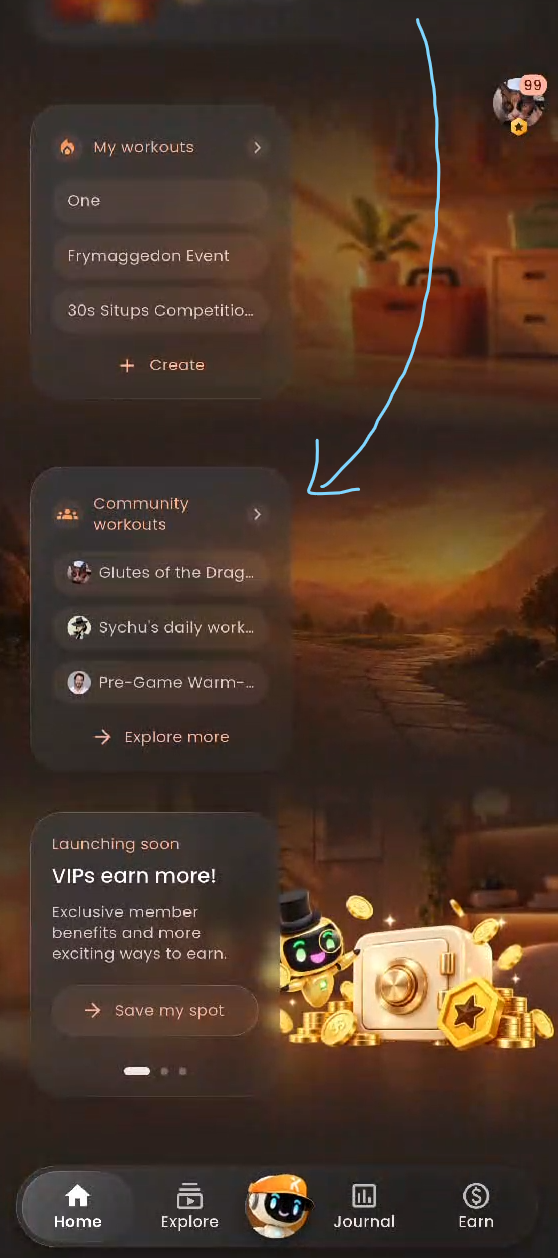
Open the Impakt app and make sure you are on the Home tab on the bottom navigation bar.
Scroll down past your daily progress, tasks, and the My workouts card until you see the Community workouts section.
Tap one of the featured routines listed on the card for quick access, or tap Community workouts > (or → Explore more) to open the full community directory.
Step 2: Browse and Search for a Routine
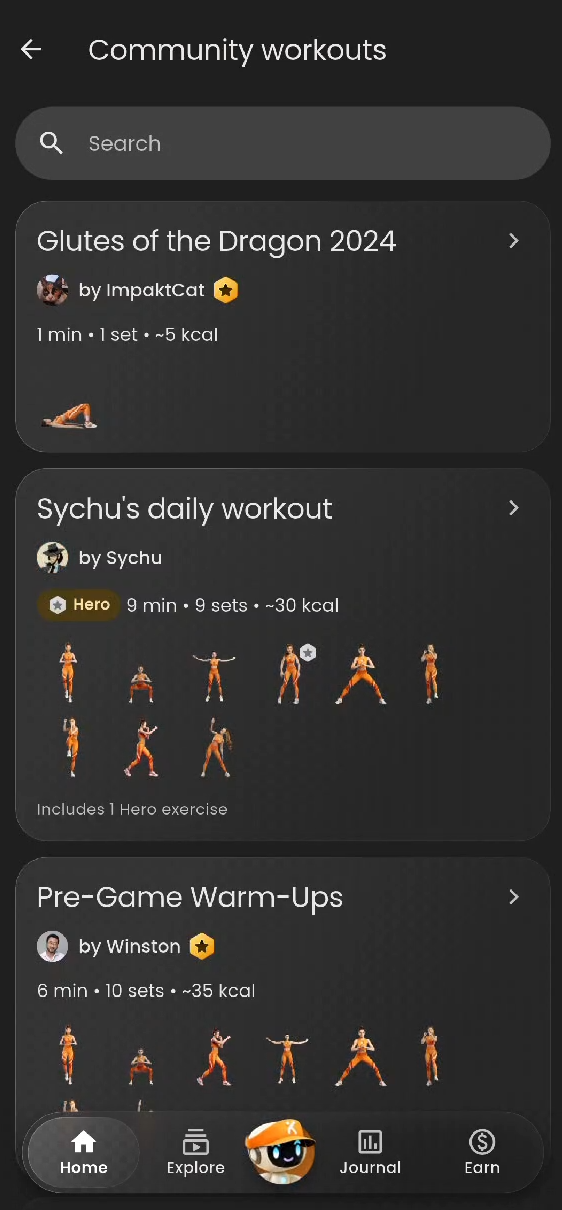
Once inside the Community workouts library, you can explore routines created by fellow athletes:
Browse the Feed: Scroll through the list to view workout cards. Each card displays:
Workout Title & Creator: The name of the workout and the athlete who built it.
Session Estimates: Estimated duration (in minutes), total number of sets, and estimated calorie burn (
~kcal).Exercise Previews: Visual thumbnails of the movements included in the routine.
Hero Badge: Workouts marked with a gold ★ Hero badge contain specialized Hero exercises (which require Hero Mode).
Search by Keyword: Tap the Search bar at the top of the screen and type an exercise name, body part, or keyword (for example,
pushup,core, orsquat) to filter the list down to specific routines.
Step 3: Review the Workout & Leaderboard
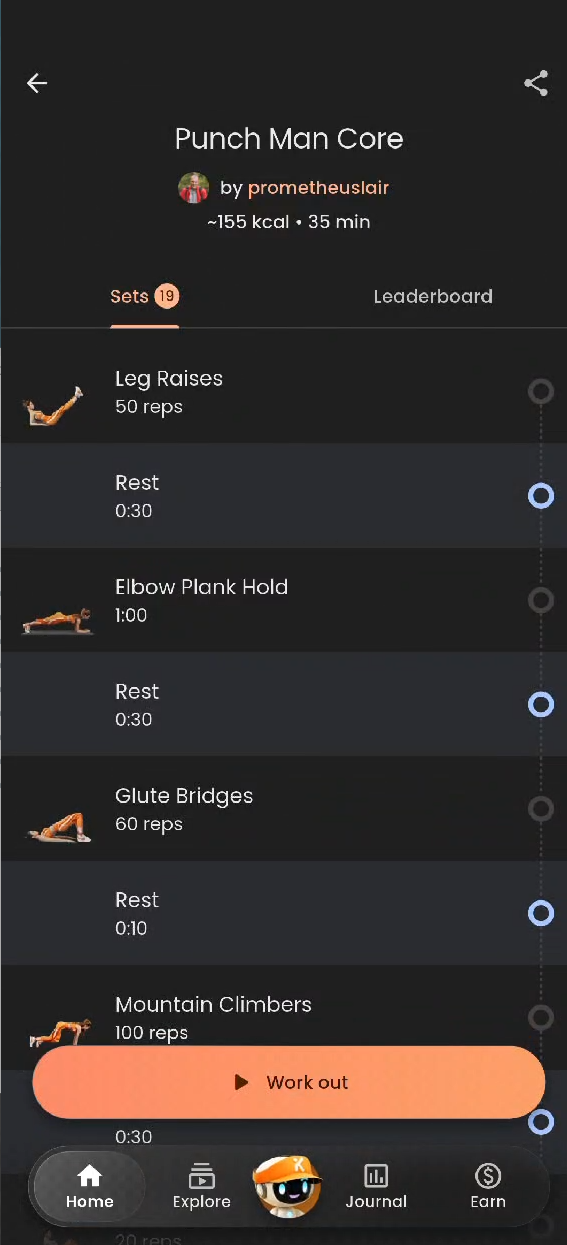
Tap on any workout card to open its overview screen:
Sets Tab: Review the complete list of exercises, target repetitions (e.g.,
50 reps) or hold durations (e.g.,0:35), and built-in Rest intervals.Leaderboard Tab: Tap Leaderboard at the top right of the list to see how other athletes have performed on that specific workout.
Share: Tap the Share icon in the top-right corner if you want to send the workout link to a friend or squad member.
Editing Own Workouts (Creators Only): If you select a public workout that you created, you will also see an Edit (Pencil) icon in the bottom-right corner. Tapping this allows you to adjust rep counts, rest timers, workout visibility (Public), or exercise order, and then tap Save & Exit.
Step 4: Start the Workout
Once you have found a routine you want to tackle, tap the Work out button at the bottom of the screen.
Select your AI Coach and audio/video settings, position your device on the floor, and follow the on-screen prompts to complete your sets—just like your Daily Workout!
Was this article helpful?
That’s Great!
Thank you for your feedback
Sorry! We couldn't be helpful
Thank you for your feedback
Feedback sent
We appreciate your effort and will try to fix the article