
Customizing your Impakt profile and configuring your account settings ensures that the AI Coach accurately tailors workouts to your body metrics, fitness goals, and recording preferences. This guide walks you through accessing your profile, customizing your public feed, and adjusting your core app settings.
1. Accessing the Profile & Quick Menu
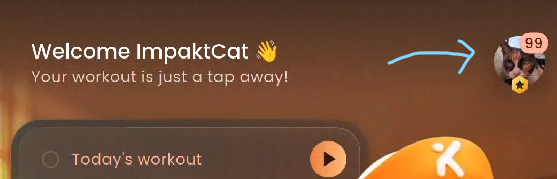
From the Home screen, tap your Profile Avatar in the top-right corner. This opens the quick-access overlay displaying your current status and navigation shortcuts: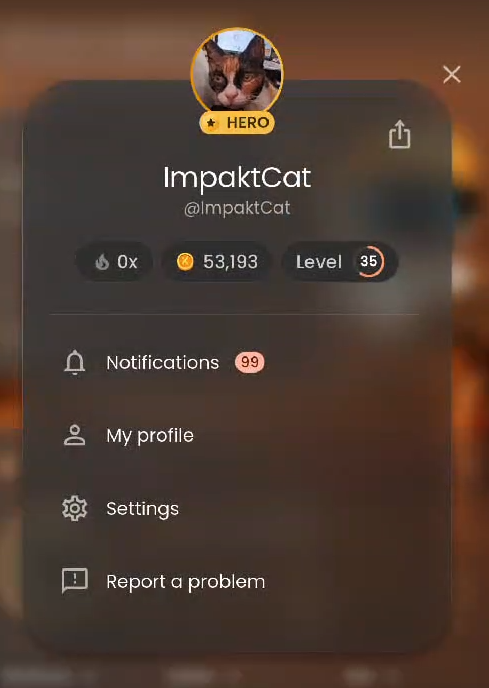
User Overview: Displays your avatar, membership badge (e.g., HERO), Display Name, Impakt ID (
@username), current streak, coin total, and XP level.Share Profile: Tap the Share icon (box with an upward arrow) in the top-right corner of the card to share your profile link.
Notifications: View unread community and workout alerts.
My profile: Jump to your public social profile and workout feed.
Settings: Open the main Account and app configuration hub.
Report a problem: Quickly send bug reports or feature feedback.
2. Viewing and Editing Your Public Profile
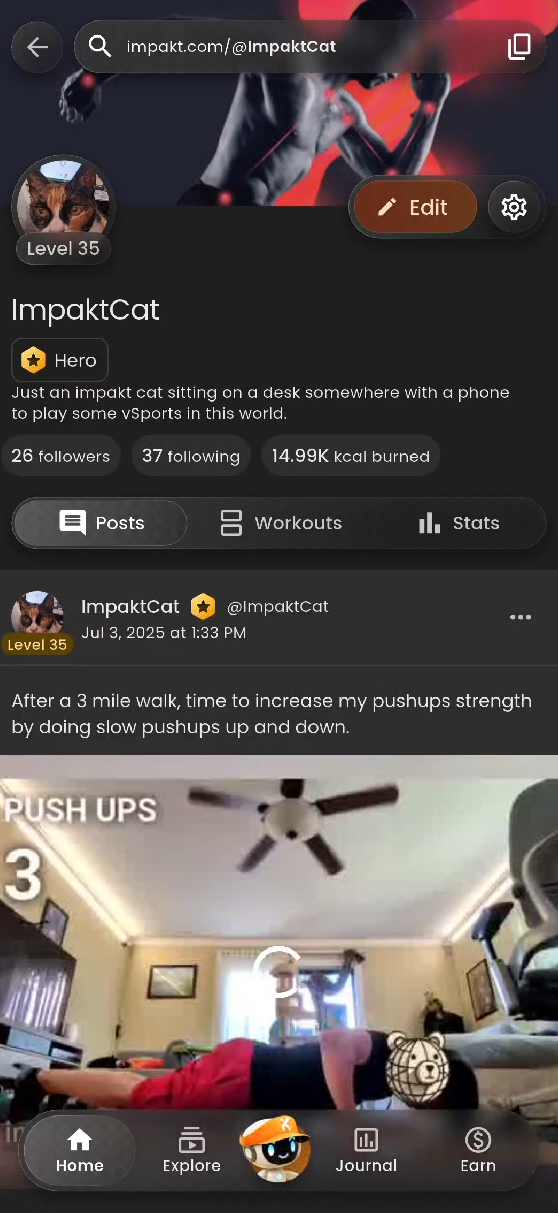
Tapping My profile from the quick menu opens your public-facing Impakt page:
Profile URL & Sharing: At the top of the screen, you can copy your unique web profile link (e.g.,
https://impakt.com) using the copy icon on the right.Stats & Bio: View your bio, follower/following counts, and total calories burned (
kcal burned).Activity Tabs: Switch between Posts (your shared workout highlight videos and status updates), Workouts (your logged session history), and Stats (your overall performance metrics).
Editing Your Public Info: Tap the Edit button next to your avatar to open the Edit profile screen, where you can update:
Banner & Avatar Photos: Tap the camera icon on the banner or the pencil icon on your profile picture.
Display name: The name shown on your profile and posts.
Impakt ID: Your unique
@handle.Bio: A short description about yourself and your fitness journey.
3. Navigating the Account & Settings Hub
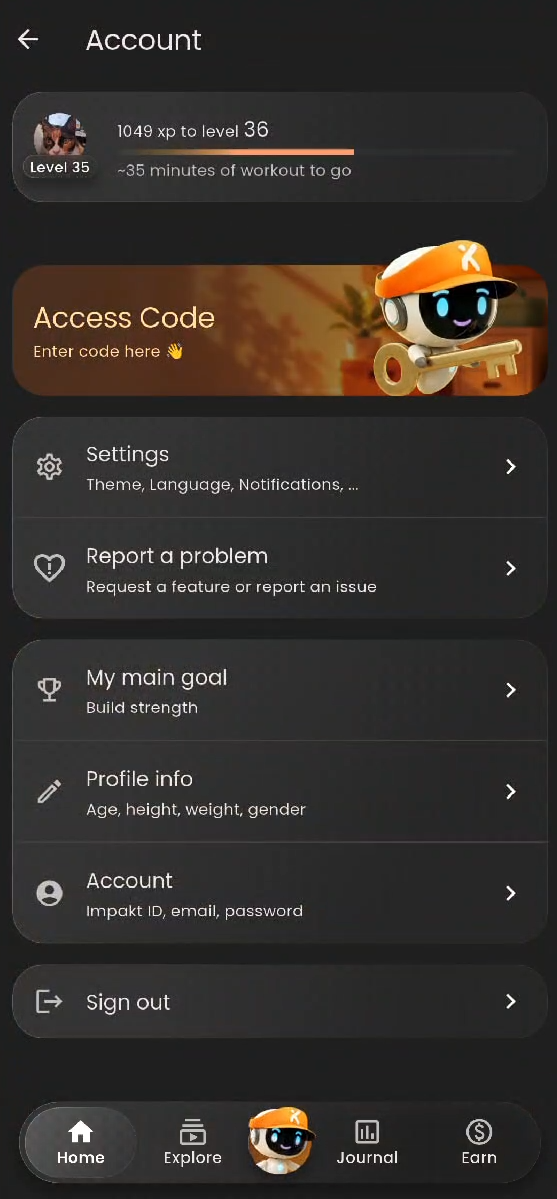
Tapping Settings from the quick menu (or the gear icon on your profile page) takes you to the Account dashboard. At the very top, a progress bar tracks how much XP (and estimated workout minutes) you need to reach your next level.
Redeeming an Access Code
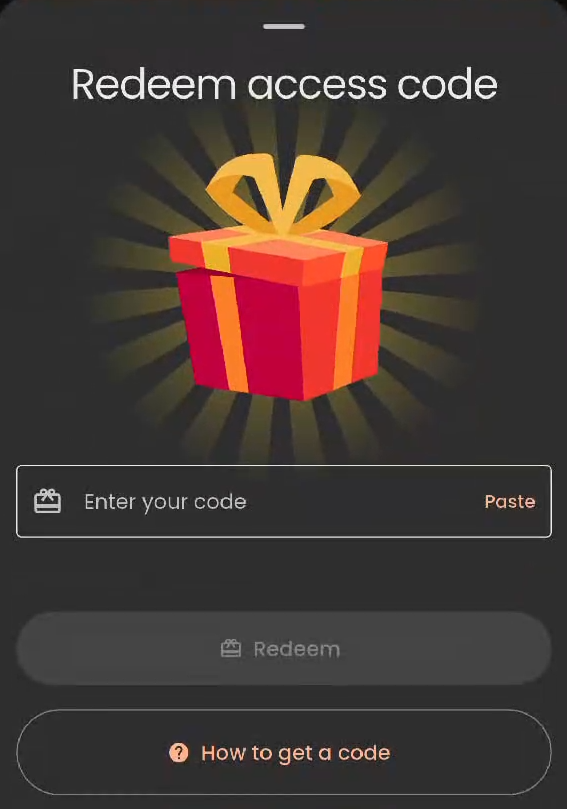
Tap the Access Code banner at the top of the Account menu to open the Redeem access code pop-up:
Type or tap Paste to enter your promo or access code into the text field, then tap Redeem.
Need a code? Tap How to get a code at the bottom of the prompt to find direct links to Impakt's official X (Twitter) and Discord channels.
App Settings (Settings)
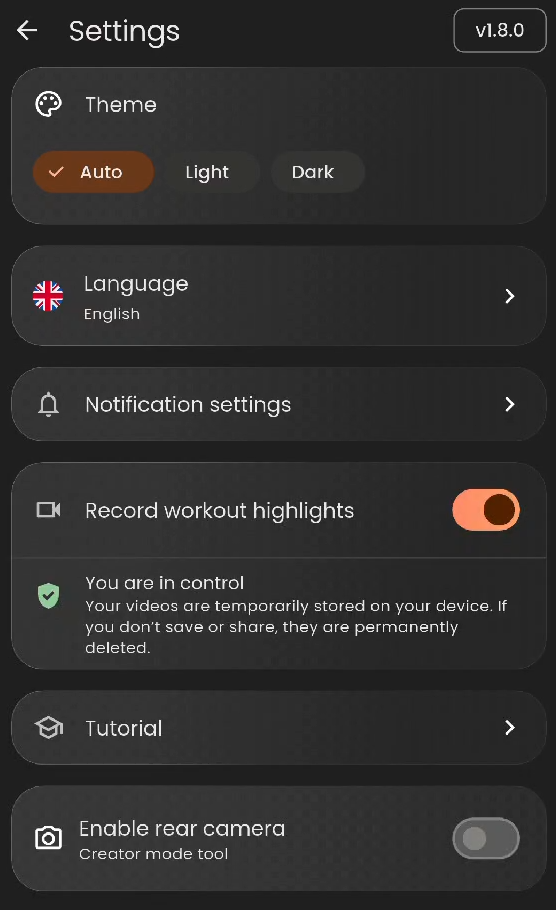
Tap Settings (Theme, Language, Notifications, ...) to configure how the app looks and operates during workouts:
Theme: Choose between Auto (matches your device's system setting), Light, or Dark mode.
Language: Select your preferred display and audio coaching language.
Notification settings: Manage workout reminders and social alerts.
Record workout highlights: Toggle this switch ON or OFF. When enabled, your videos are temporarily stored on your device so you can save or share highlight clips—if you choose not to save or share them, they are permanently deleted.
Tutorial: Replay the initial onboarding and camera positioning tutorial at any time.
Enable rear camera (Creator mode tool): Toggle this ON if you want to record workouts using your phone's higher-resolution rear camera instead of the front-facing selfie camera.
Reporting an Issue (Report a problem)
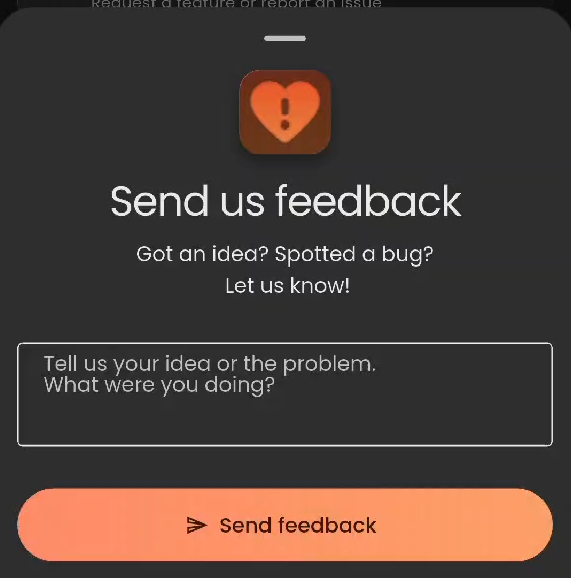
Tap Report a problem (Request a feature or report an issue) to open the Send us feedback drawer. Describe your feature idea, bug, or what you were doing when an issue occurred, and tap Send feedback to submit it directly to the Impakt team.
Updating Fitness Goals (My main goal)
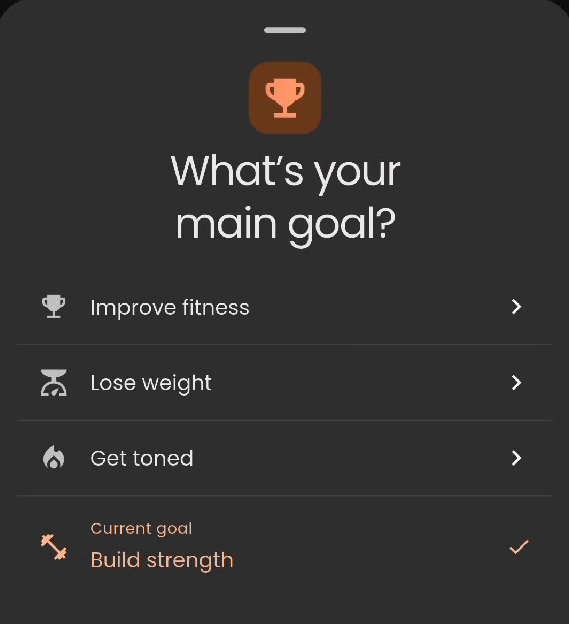
Tap My main goal to adjust the primary focus of your workouts:
Choose from Improve fitness, Lose weight, Get toned, or Build strength.
A confirmation prompt will appear asking if you want to switch goals, noting that the AI Coach will adapt your daily workouts accordingly.
Tap Yes, adapt workouts to confirm, or No, keep current goal to cancel.
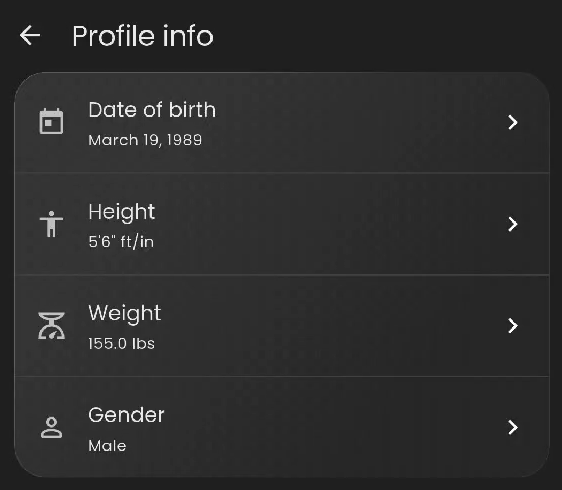
Updating Body Metrics (Profile info)
Keeping your physical metrics accurate helps Impakt calculate your calorie burn (kcal) and daily targets properly. Tap Profile info to view or update:
Date of birth: Used to calibrate age-adjusted heart rate and calorie estimates.
Height: Set in feet/inches (
ft/in) or centimeters (cm).Weight: Tap Weight to switch between
lbsandkg, enter your current weight using the keypad, and tap Save.Gender: Select your gender profile for metabolic calculations.
Managing Credentials & Account Deletion (Account)
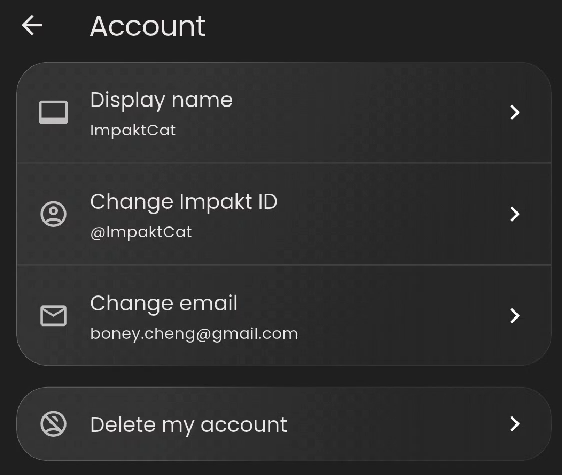
Tap Account (Impakt ID, email, password) at the bottom of the dashboard to manage your core login and identity details:
Display name: Update how the app and community address you (up to 32 characters) and tap Submit.
Change Impakt ID: Modify your unique
@usernamehandle (up to 15 characters) and tap Submit.Change email: View or update the email address tied to your login.
Delete my account: If you wish to permanently remove your account and data, tap Delete my account. Because this action cannot be undone, you must check the confirmation box next to your profile card and tap Delete (or tap Cancel to return safely).
To log out of your current session without deleting your data, simply tap Sign out at the bottom of the main Account menu.
Was this article helpful?
That’s Great!
Thank you for your feedback
Sorry! We couldn't be helpful
Thank you for your feedback
Feedback sent
We appreciate your effort and will try to fix the article