
Impakt uses real-time AI motion tracking through your device's camera to count your repetitions, guide your form, and cheer you on. Follow this step-by-step guide to set up your camera, customize your AI Coach, complete your first workout, and manage your post-workout sharing settings.
1. Reviewing Your Routine & Granting Camera Access
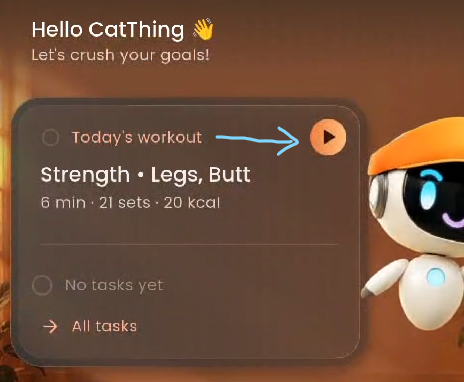
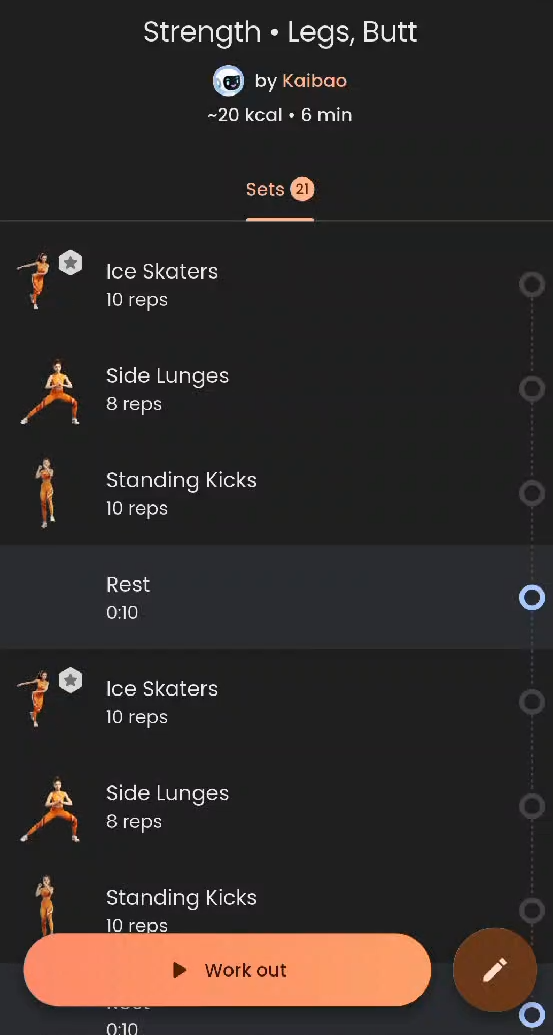
Preview Your Workout: From the Home tab, tap the Today's workout card. Scroll through the list to preview every exercise, rep target, timed hold, and rest interval in the session. Tap Work out at the bottom of the screen when you are ready.
Enable Camera Permissions ("Every rep counts"): On your first workout, Impakt will ask for camera access so your AI Coach can count your reps and coach you. Tap Next, then select While using the app (or Only this time) on your device's system prompt.
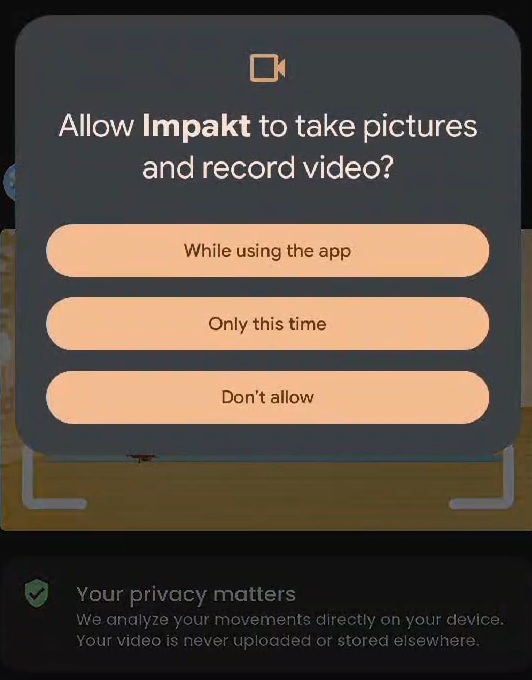
Privacy Guarantee: Impakt analyzes your movements directly on your device. Your live camera feed is never uploaded or stored anywhere unless you explicitly choose to share a highlight video.
2. Camera Setup Checklist ("How to setup")
Before your first session begins, a quick interactive tutorial will show you how to get the best motion-tracking accuracy (you can also tap Skip in the top-right corner):
Enough lighting: Exercise in a well-lit space and avoid bright backlighting (such as standing directly in front of a sunny window).
No objects behind you: Keep the area behind and around you clear of clutter or furniture.
Your whole body is visible: Make sure you have enough room to step back so the camera can see you from head to toe.
High contrast between body and background: Wear workout clothes that stand out clearly against your wall and floor colors.
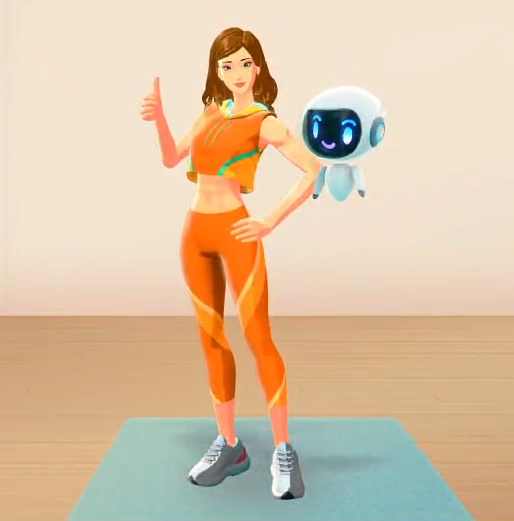
Tap Next through the summary checklist and phone-placement preview to proceed to the coach setup screen.
3. Customizing Your AI Coach & Video Settings
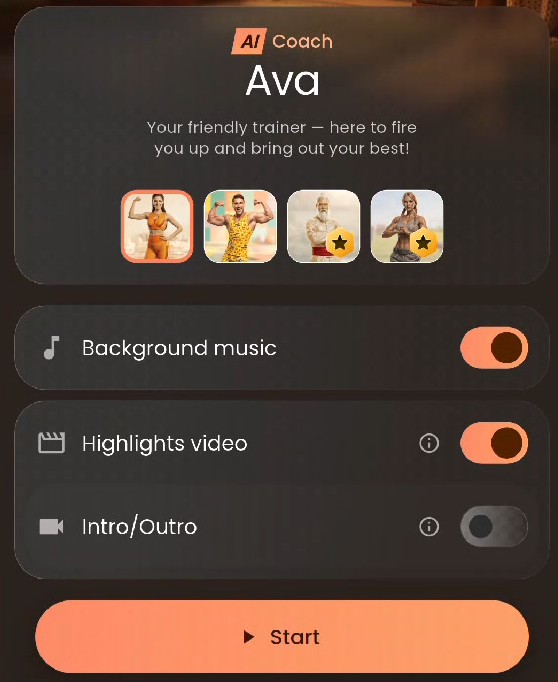
Before starting the countdown, customize your workout experience:
Choose Your AI Coach: Select your preferred trainer, such as Ava ("Your friendly trainer — here to fire you up and bring out your best!") or Luke ("Cringe jokes, solid workouts").
Note: Selecting a new coach for the first time will require a small one-time download (around 20 MB). Coaches marked with a Star icon require an active Hero Mode membership.
Background Music: Toggle workout music On or Off.
Highlights Video: Toggle On to automatically capture a clip of your best workout moments and save it to your private journal.
Intro/Outro: Toggle On if you want your AI Coach to prompt you to strike quick poses at the start, middle, and end of your workout for a custom sizzle reel.
Tap Start when you are ready to begin.
4. Positioning Your Device & Performing the Workout
Rotate to Landscape Mode: Turn your phone horizontally.
Turn Volume Up: Increase your device volume so you can clearly hear your AI Coach's cues and rep counts.
Place & Tilt Your Device: Set your device on the floor (propped against a wall or stand) and tilt it slightly upward until the on-screen level bar turns green and displays Perfect Setup! (You can also tap Skip in the bottom-right corner to bypass calibration).
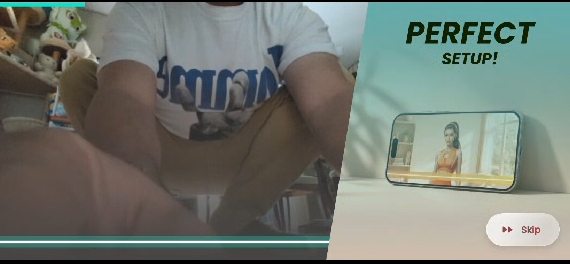
Step Back into the Outline: Walk backward a few steps until your full body aligns inside the on-screen silhouette.
Trigger the Countdown ("Shoot Finger Guns"): Raise your arm to match the on-screen gesture prompt to start the workout hands-free.
Follow Your AI Coach: Your screen will split between your live camera view on the left and your AI Coach demonstrating the movement on the right. Perform each exercise—your rep counter in the top-left corner will automatically count up with every completed rep.
5. Pausing, Skipping, or Ending a Workout Early
Automatic Completion: Your session will wrap up automatically once you finish the final exercise set.
Pause Menu: If you need to take a breather or stop early, take a step away from the camera or tap anywhere on the screen to bring up the Pause menu:
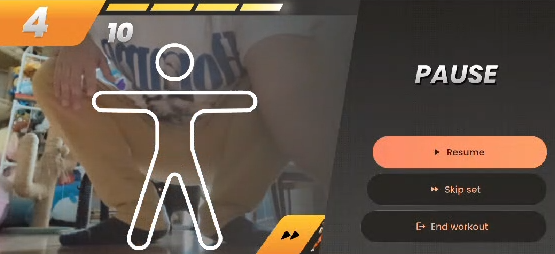
Resume: Jump right back into your current set.
Skip set: Advance immediately to the next exercise in the routine.
End workout: Tap End workout, then confirm by selecting Yes, I'm done (or No, keep going to return to your session). Any reps you have already completed will still be logged.
6. Claiming Rewards & Sharing to the Community
When your workout finishes, you will see "HEY! PICK ME UP!" on screen. Pick up your phone and rotate it back to portrait orientation:
Claim Your Rewards & Streak: Review your workout breakdown and tap Claim rewards to collect your coins and ignite your daily Streak. Tap Keep moving on the streak screen.
Rate Your Workout: Let us know how the workout felt by selecting Too easy, Just right, or Too hard (or tap Report a problem if you experienced a technical issue), then tap All good.
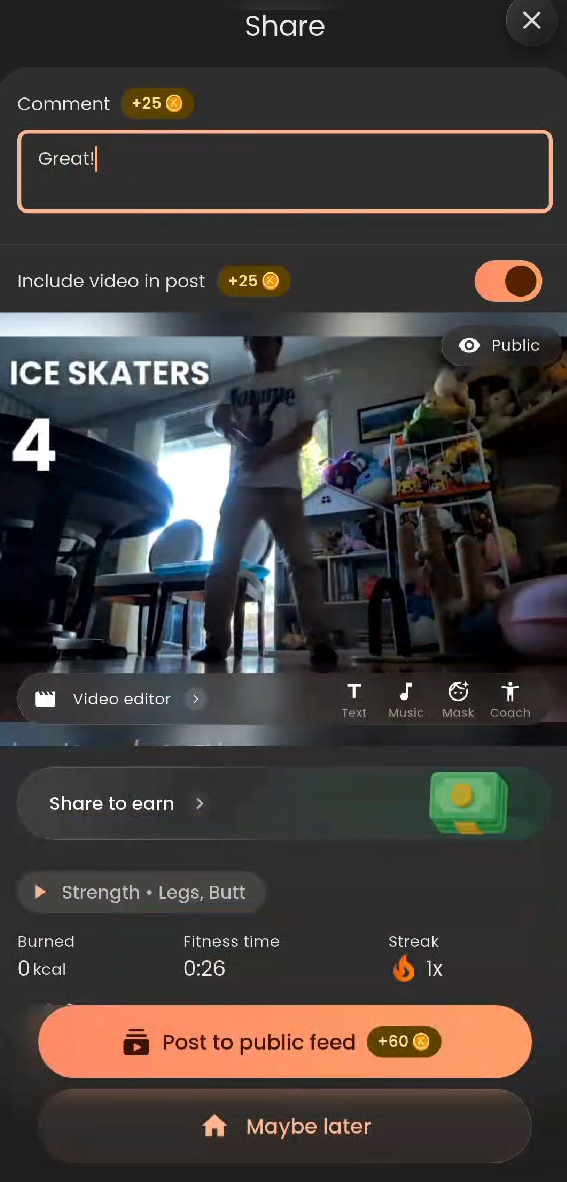
Configure Your Community Post (Share Screen):
Add a Comment (+25 Coins): Type how you feel or where you worked out in the Comment field at the top to earn +25 bonus coins.
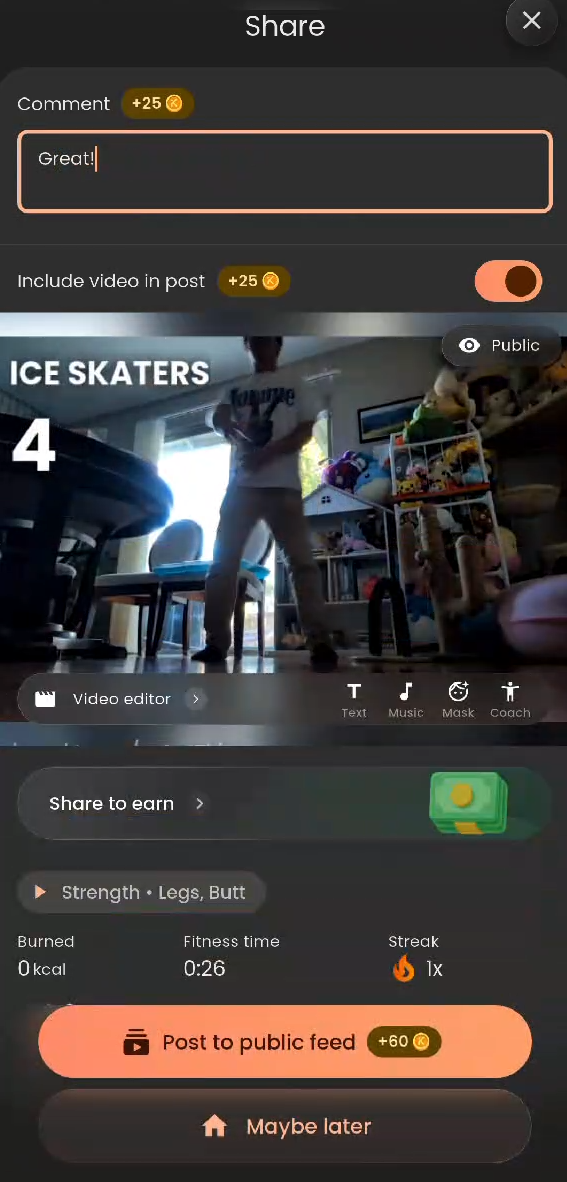
Include or Exclude Your Highlights Video (+25 Coins):
Public Video: When Include video in post is toggled On, a Public badge appears in the top-right corner of the video preview, and you earn an extra +25 coins when posting. You can also tap Video editor to customize Text, Music, Mask, or Coach overlays.
Private Video (Keep Off Public Feed): If you do not want your video shared publicly, toggle Include video in post Off (and toggle Post highlights video Off in the "You're in control" confirmation pop-up). The badge on your video will switch to Private, meaning your highlight video stays exclusively on your device in your private local journal.
Post or Skip:
Tap Post to public feed to share your workout achievement with the Impakt community and collect your bonus coins.
Tap Maybe later if you prefer not to post to the public feed; your workout stats and private journal highlights will still be saved to your account.
Was this article helpful?
That’s Great!
Thank you for your feedback
Sorry! We couldn't be helpful
Thank you for your feedback
Feedback sent
We appreciate your effort and will try to fix the article